What if gifs held no more secrets for you? Do you regularly see these short animated videos in the comments or on your newsfeed, yet you can’t manage to place them on LinkedIn ™ ? Don’t stay frustrated! Don’t panic, discover in this article how to simply add a LinkedIn™ gif to your posts, comments or messages!

Why insert gifs on LinkedIn™?
LinkedIn™ is a professional social network, however, the content you publish does not have to be rigid and serious! To tackle a slightly lighter topic, for example, or give your post a fun side, it’s a good idea to add a gif.
Gifs are communication tools that have the advantage of capturing the attention of your audience to get more views. They are preferred to videos because they are lighter and more direct. Posting a gif on LinkedIn™ is fine, as long as it illustrates the information in your article or content and remains in a professional context.
Even though LinkedIn™ offers the possibility to add gifs, remember that you are neither on Facebook™, nor on Instagram™ or other more relaxed social networks. Some of your interlocutors like your customers may not appreciate the a little too demonstrative gif that you send them by message! Use of these mini videos on LinkedIn™ must therefore remain moderate.
However, to respond to a message in a conversation with your colleague, or to show your commitment to his publication which deals with a casual subject, the addition of gif is effective and appreciated.
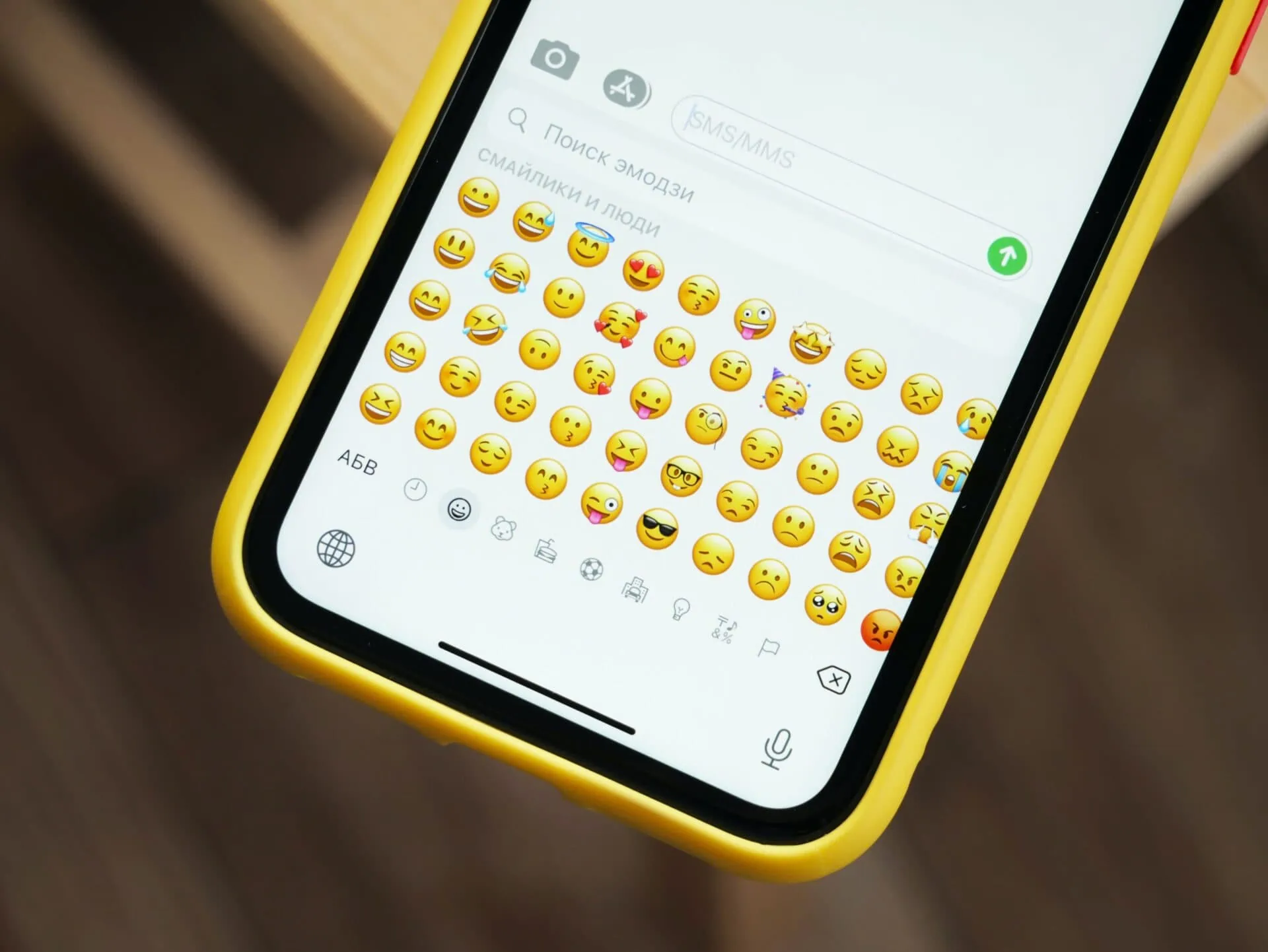
In addition, gifs are more expressive than emojis , they illustrate and humanize your point more.
Are you visible on LinkedIn™? Are you getting the results you’re hoping for? How about promoting yourself through your LinkedIn ™ profile? To have a profile that you are proud of and that values your skills, adopt the Proinfluent Profile .
How do I put an animated gif in a publication, LinkedIn™ post or article?
To add gifs to your posts or articles , you must go through a site external to LinkedIn™. Indeed, it is not possible for the moment, to insert a gif directly from its interface. However, the process is simple:
- Log in to your account, then go to the “Start a post” bubble at the top of the home page;
- LinkedIn™ does not offer a gif icon. So it’s up to you to find it via a site offering gifs;
- From your Google™ search engine, go to giphy ™ or another site where you can find gifs using a keyword;
- When you find the one you want, right-click, then click “Save Photo As.” Choose the folder in which to place it then click on “Save”. Your gif is now in your files, in the selected folder;
- Return to your LinkedIn™ post . Select the “Add an image” icon and go find your gif;
- Good game ! It now appears in your post!

How to download a gif?
To download a gif:
- go to a gif platform;
- choose your visual;
- and click “download” (or right-click and select “save image as”.
How to create a gif?
To create your own GIF, we recommend that you use the free online service GifMaker which allows you to have a gif in a few clicks either:
- from a sequence of photos that you have taken in burst;
- or with an extract from a video.
How do I add a LinkedIn™ gif in a comment?
To add a gif in a comment, it is possible to proceed in the same way as the previous method. That is to say, upload your gif via a website, save it in your files then, by clicking on “Add an image”, go and get your gif.
It’s a bit of a time consuming task… That’s why we suggest an extension signed Waalaxy™ ! It allows you to quickly and easily insert gifs to your comments!
- Download the “ Unicaat ” chrome extension from your Google™ Play Store;
- Connect to your LinkedIn™ space then write a comment under the articles, images and posts of your choice. Magical ! Thanks to Unicaat, a gif icon now appears next to that of emojis and images;
- Now just type the keyword of your choice and select the gif, depending on the subject of the post and the profile of the person.

How do I place a LinkedIn™ gif in a message?
Adding a gif to a conversation via LinkedIn™ messaging is really easy. Indeed, the social platform offers this functionality.
- From the LinkedIn™ conversation of your choice, click on the gif logo, located at the bottom of the menu;
- In the search bar, type the keyword(s) to find the gif to place, click on it and it’s sent!

Gif LinkedIn ™ to conclude
Gifs offer several functionalities:
- replace an image in an article, a post,
- hold the attention of readers on their news feeds,
- underline a point,
- or even make your publication more fun and attractive.
- you must first register it from an external site such as Giphy™,
- then, from your LinkedIn™ home page, place it on your post as you would place an image.
Gif LinkedIn™ to summarize in 4 questions
How do you post an animated GIF on LinkedIn™?
To add gifs to your content on LinkedIn™:
- Save your gif to your files via a site like giphy™;
- Go to LinkedIn™ and after going through the connection box, start writing a post, thanks to the “Start a post” bubble;
- To add your gif, click on “Add an image / photo”, and select the saved gif.
How to embed GIFs on social networks?
It depends on social media. Depending on the options and features they offer, it is sometimes possible to add them in a comment, message or post, simply by selecting the gif icon. It is in the menu, next to that of emojis, images or videos.
On LinkedIn™, which wishes to remain a professional social network, adding gifs in posts or comments is only possible by adding a chrome extension or by uploading the gif of your choice.
How to find the address of a GIF?
To find the address of a gif, that is to say its URL, it must be hosted online on a site of gifs to download. Then just right click and select “Copy image address” or use the small logo link 🔗 which is directly on the gif.
What are gifs for?
GIFs are real assets in your digital communication strategy. They allow to:
- capture a person’s interest and hold their attention;
- not slow down the loading of a page (they are lighter than a video);
- convey a message universally. Indeed, the gif is understood by all users, regardless of the language in which they speak.
Gifs are real communication tools that can be used to replace an image in an article, make your profile more fun and even in your prospecting, provided your professional environment allows it.